
Safari on iPhone and iPad
Set Up Duskio in Safari
Safari controls whether the extension is enabled and which websites it can restyle. After these steps, Duskio can apply your selected theme locally on authorized pages.
-
1. Install and open Duskio
Install Duskio from the App Store, then open the Duskio app once so setup guidance and settings are available on the device.
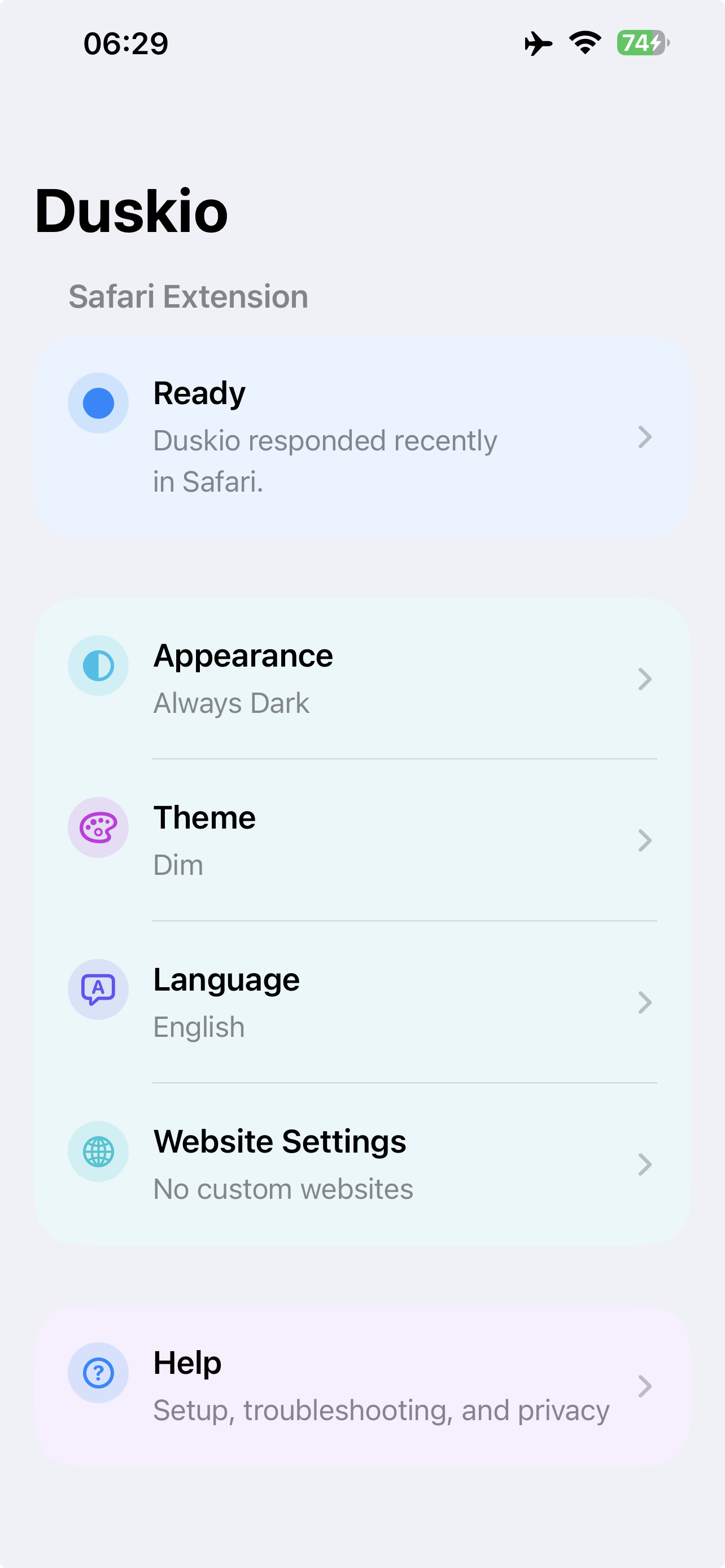
Open the Duskio app -
2. Open Safari
Duskio works inside Safari. Open Safari and go to any webpage you want to read more comfortably.
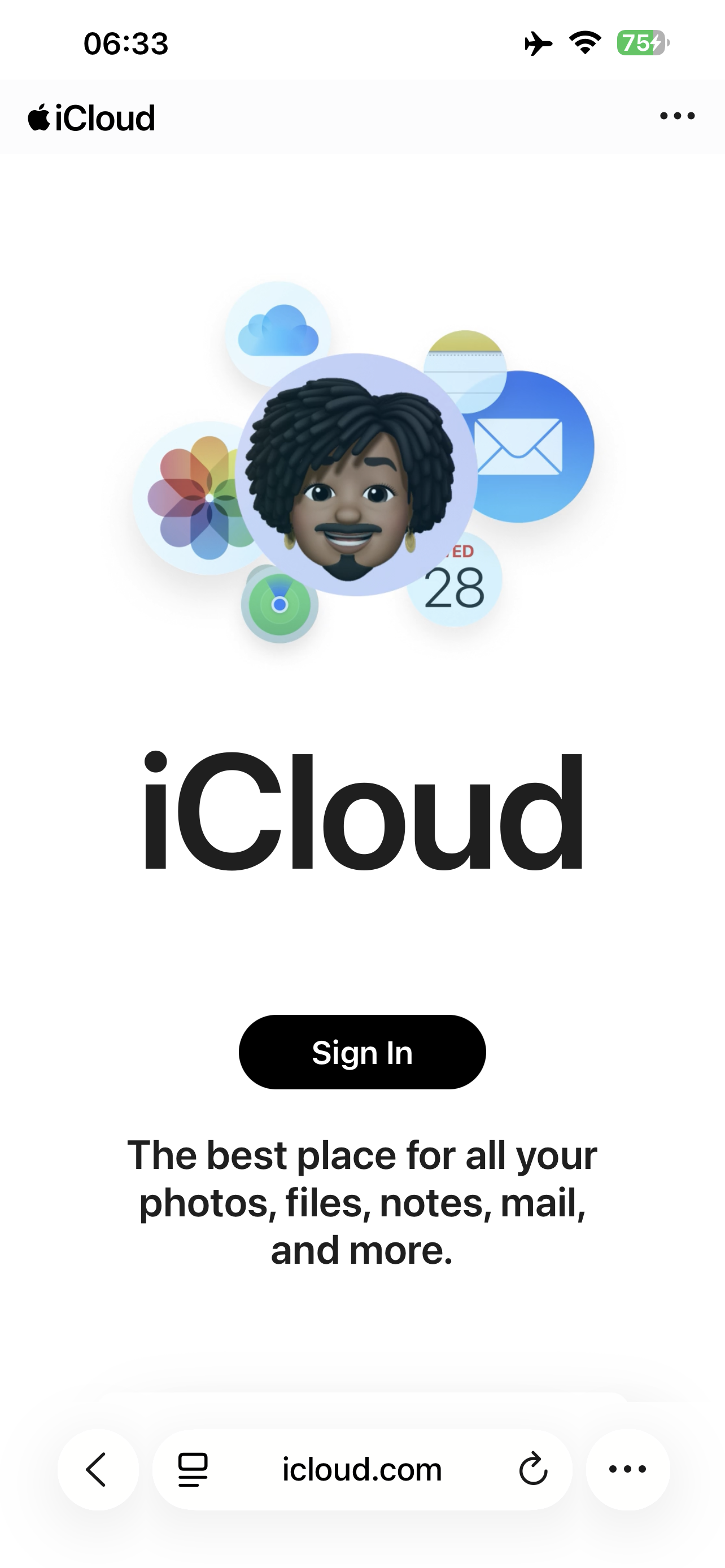
Open Safari -
3. Open Safari’s page or extensions menu
In the Safari toolbar or address area, open the page menu. Depending on your iOS version, this may appear as a page-settings control or an extensions control.
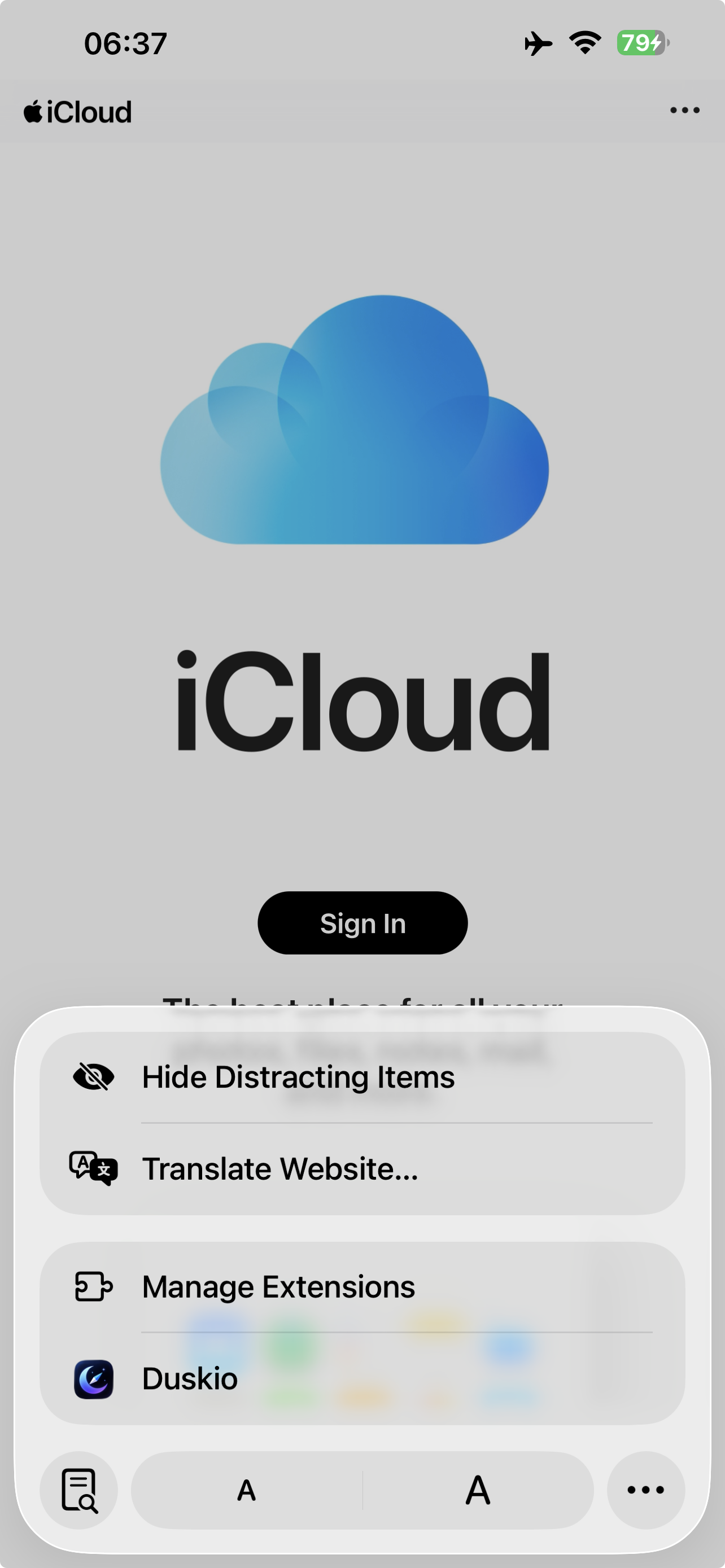
Open the Safari page menu -
4. Open Manage Extensions
Choose Manage Extensions to see Safari Web Extensions installed on this device.
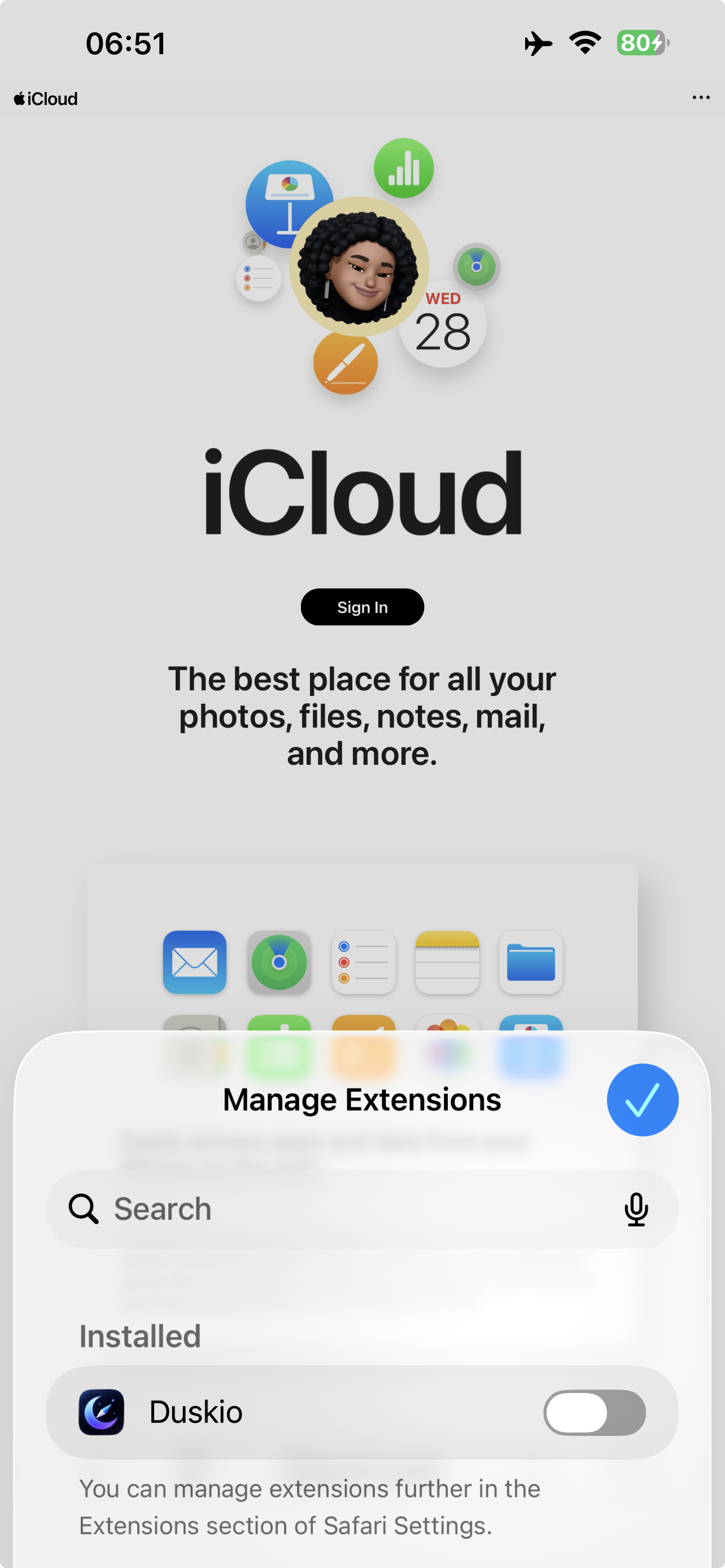
Manage Safari extensions -
5. Enable Duskio
Turn Duskio on. Until this switch is enabled, Safari will not load the extension on webpages.
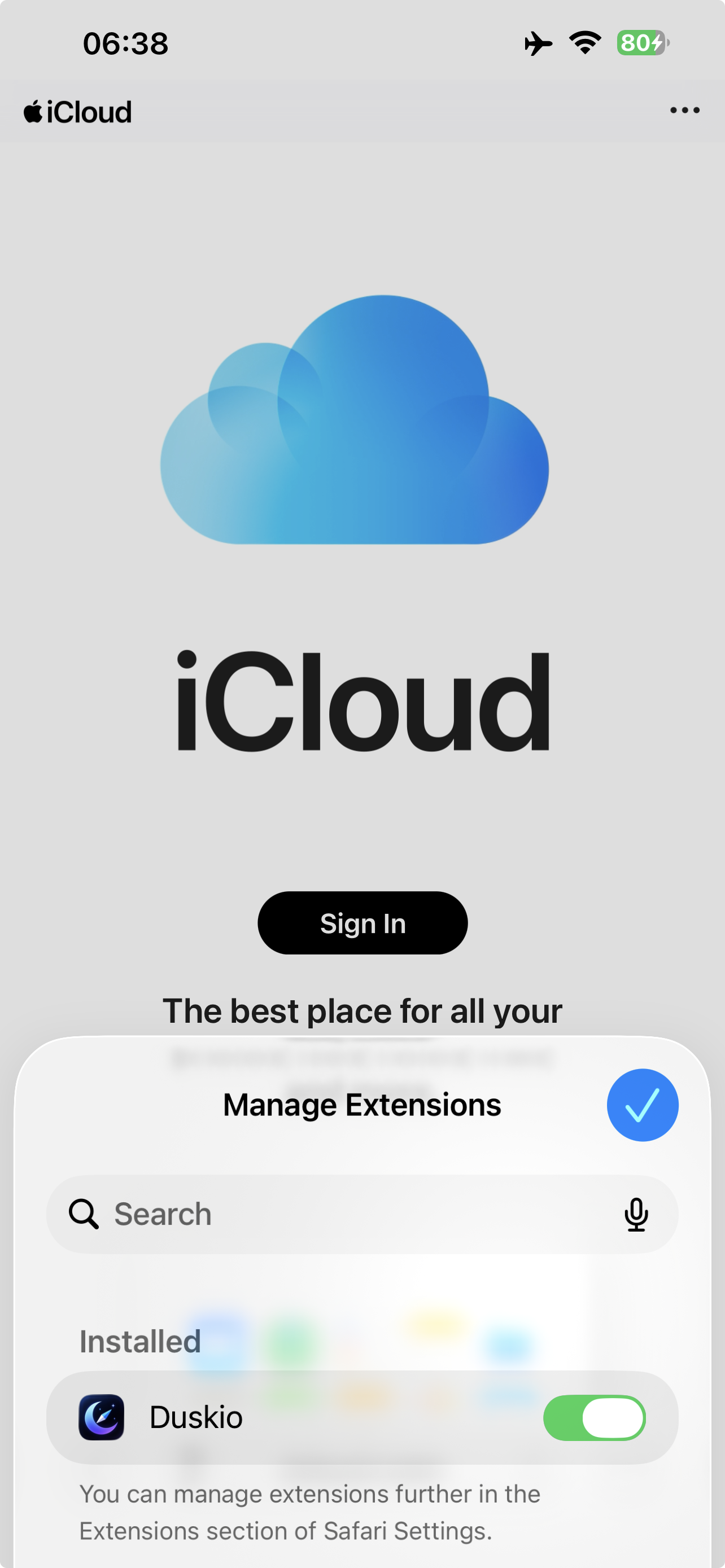
Enable Duskio -
6. Allow website access
Safari asks which websites the extension may access. Duskio needs this permission to restyle page appearance on your device. Access does not send browsing content to us.
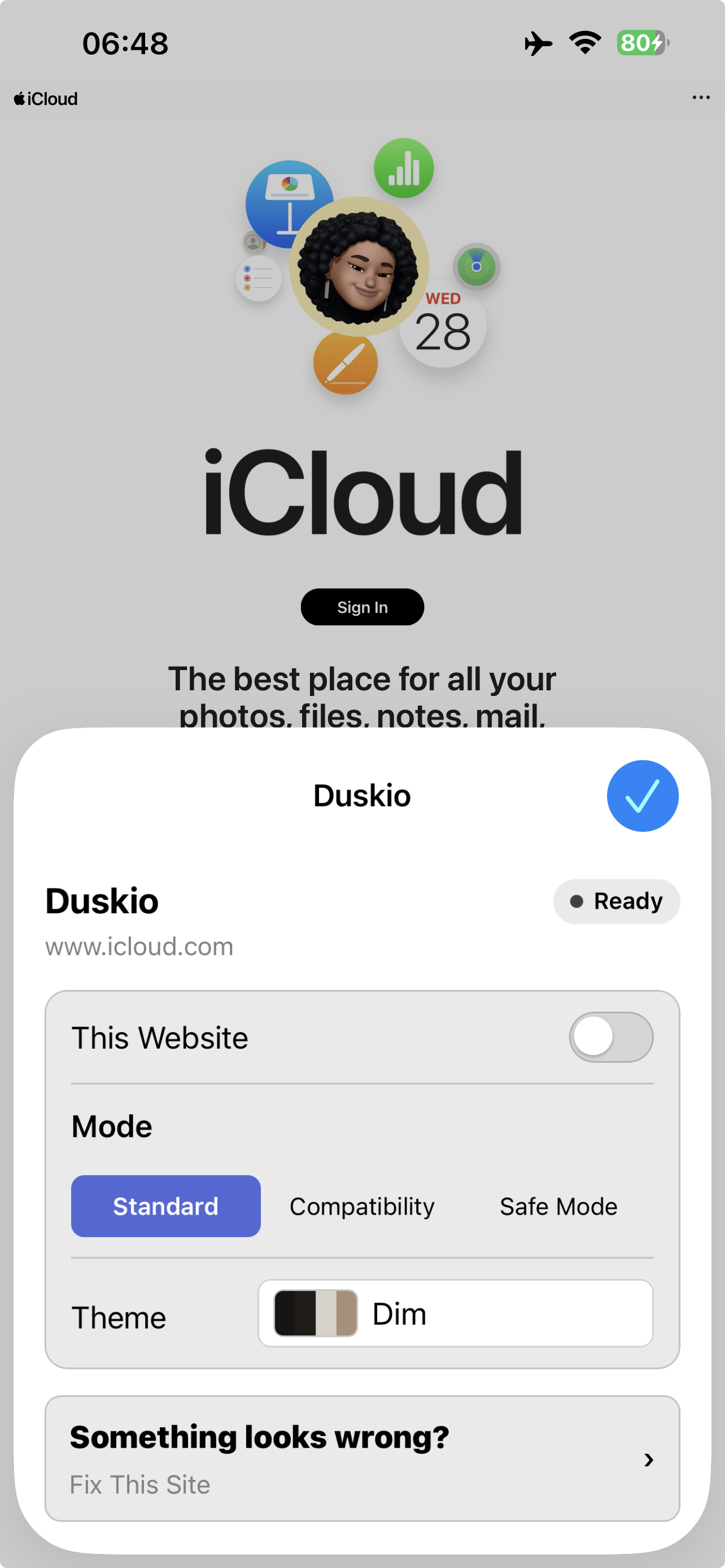
Allow Duskio on all websites -
7. Prefer access on all websites
For the intended universal dark-mode experience, allow Duskio on all websites. You can still disable Duskio for individual sites later from the popup.
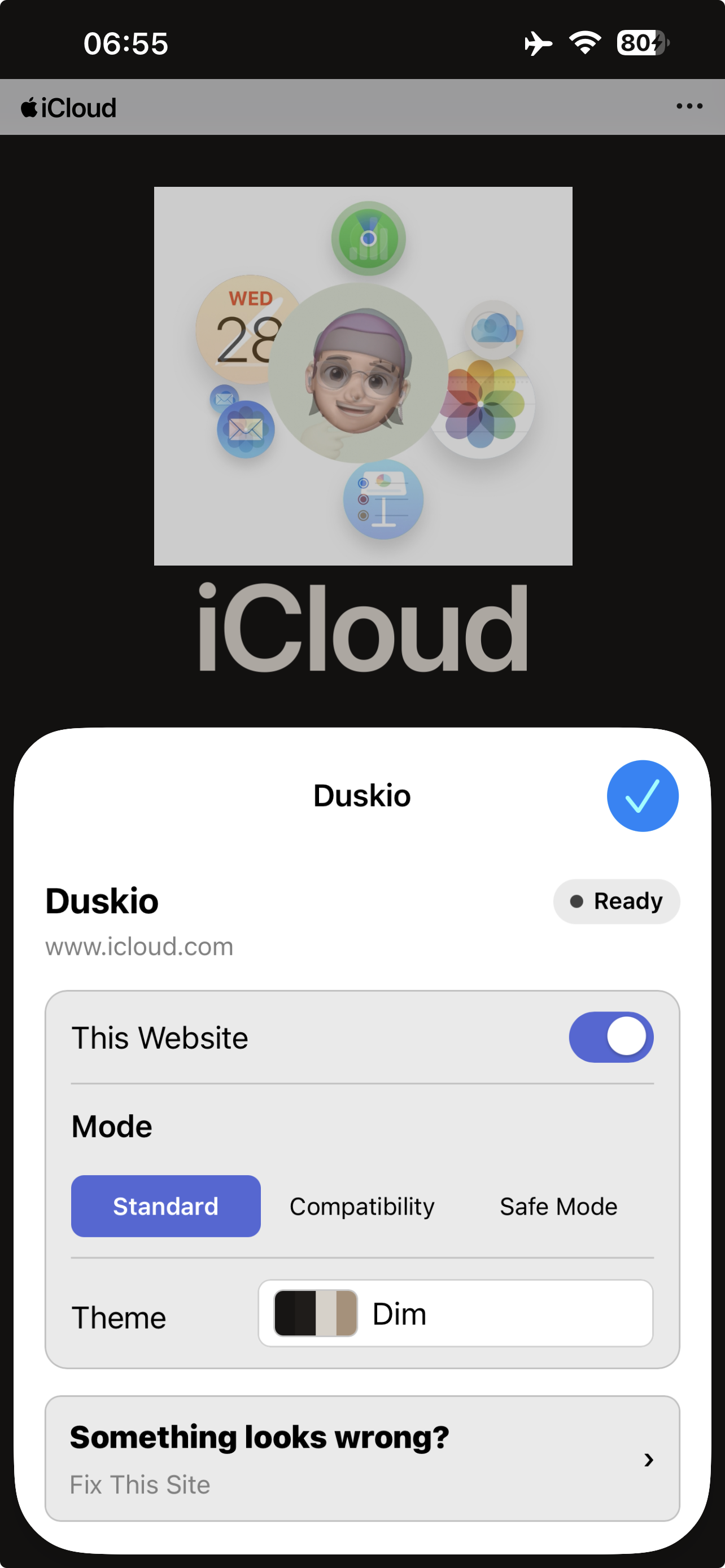
Open the Duskio Safari popup -
8. Return to Safari and open a webpage
Go back to the page, or visit another HTTP or HTTPS website. If the page was already open, reload it after enabling access.
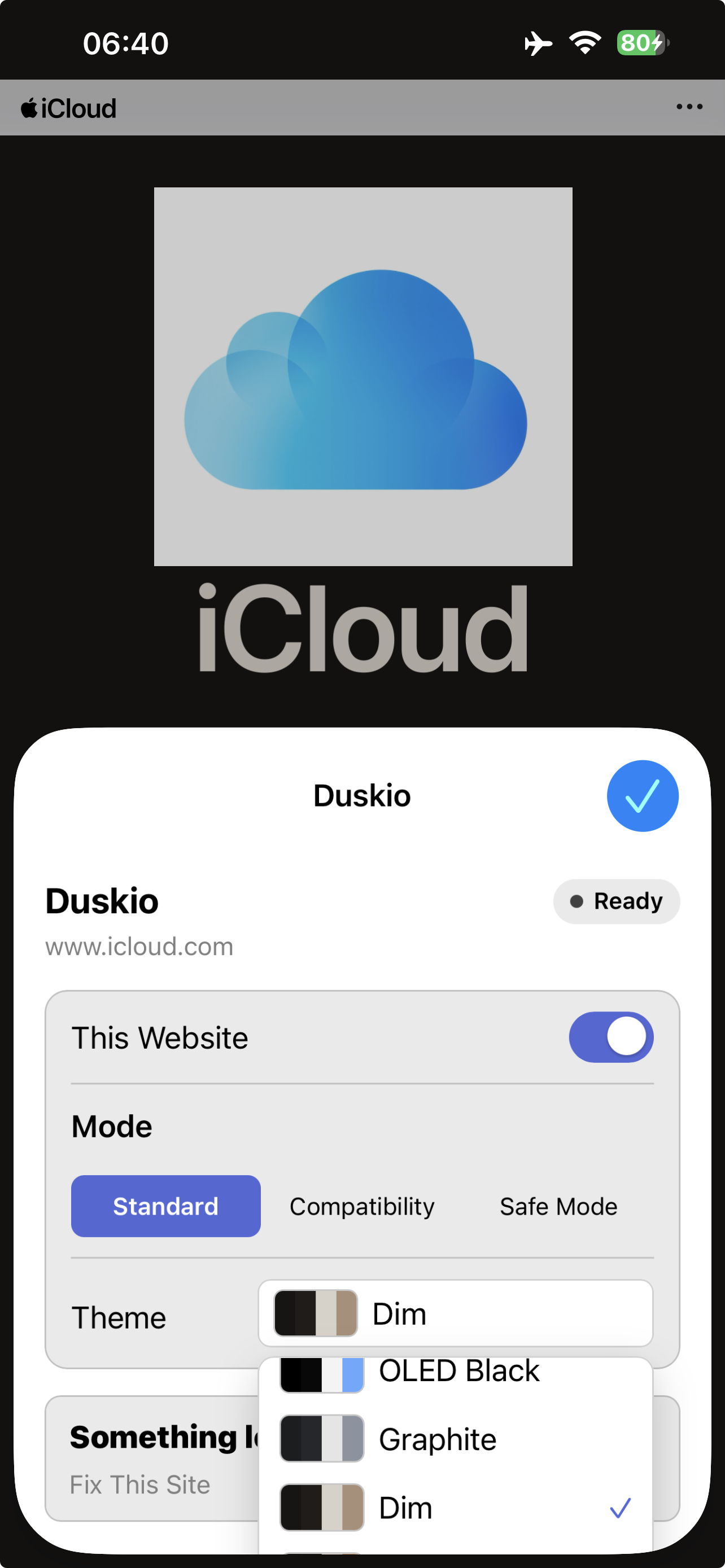
Choose a Duskio theme -
9. Use the Duskio popup
Open the Duskio item in Safari’s extensions menu. From there you can turn This Website on or off, choose Standard / Compatibility / Safe Mode, and pick a theme.
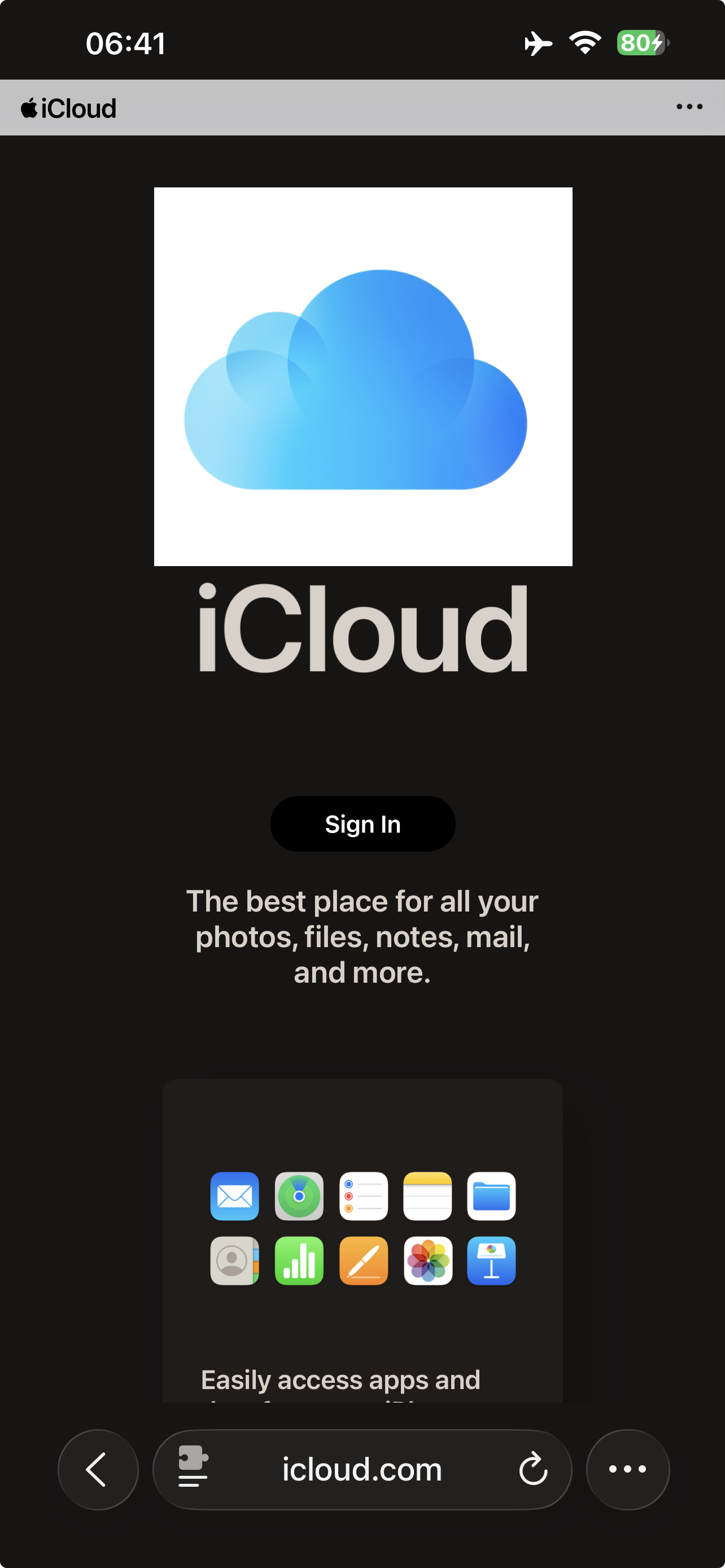
Duskio dark mode working in Safari
Another way: iOS Settings
You can also enable Duskio from Settings: open Settings, then choose Safari → Extensions → Duskio. Enable the extension and allow access to the websites you choose.
If a webpage remains light
- Verify Duskio is enabled in Safari Extensions.
- Verify website access is granted for that site, or for all websites.
- Ensure This Website is enabled in the Duskio popup.
- Check Appearance in the Duskio app: Follow System only darkens pages when the device is in Dark Mode; Always Light never applies dark themes.
- Reload the page.
If the page still looks wrong after it is dark, see Duskio Support for Compatibility, Safe Mode, and Fix This Site.